
Advanced Process Explorer
Advanced Process Explorer shows everything that is running on your computer. Processes are displayed in a parent/child tree next to a detailed list with CPU usage, memory, user name, description, company and command line, and a lower pane shows the handles, DLLs and threads of the selected process. It is the tool to use when Task Manager is not enough: find out which program has a file or DLL open, which process owns a window, what a suspicious process is, where it was started from and whether it is digitally signed.
The display is refreshed automatically without flicker. Newly started processes are briefly highlighted in green and exited processes in red, so you can see at a glance what has just changed. Kill, suspend, resume or restart a process, kill a whole process tree, or change its priority and CPU affinity with a right mouse click. Advanced Process Explorer is a single small executable that also inspects 64-bit processes on 64-bit Windows.
Size: 1.03 MB
Released: October 2026
Price: $19.95
Operating Systems: Windows 7 SP1 / 8.1 / 10 / 11 (32-bit and 64-bit)
Requires: Nothing else — a single executable. Administrator rights are optional and give access to more process information.


Supported Features
Process tree and process list
- Process tree on the left shows which process started which, from the computer name down to every child process, with process icons and PIDs; expand all or collapse all with one command.
- Process list on the right shows the processes of the selected branch with 26 columns to choose from: Process, CPU, Private Bytes, Working Set, PID, Description, Company Name, Threads, Handles, User Name, Parent PID, Session, Priority, Architecture (x86 / x64 / ARM64), Integrity level, Image Path, Command Line, Start Time, CPU Time, Peak Working Set, Peak Private Bytes, Virtual Size, Page Faults, Page Fault Delta, I/O Delta and Version.
- Select Columns dialog; drag column headers to change their order; sort by any column. Columns, widths, order and sort order are remembered.
- Flicker-free automatic refresh every 0.5, 1, 2, 5 or 10 seconds; Pause updates (Space) to study a snapshot, Refresh Now (F5) at any time.
- Change highlighting: newly started processes are shown in green and exited processes in red for a configurable time before they are removed.
- Status bar with the number of processes, threads and handles, total CPU usage, commit charge and physical memory usage.
- Exact 64-bit process information on 64-bit Windows, even though the program itself is a small 32-bit executable.
Lower pane: Handles, DLLs and Threads
- Handles (Ctrl+H): type, name, handle value and access mask of every object a process has open — files, folders, registry keys, events, mutexes, sections, semaphores, processes, threads, tokens and more; unnamed handles can be shown or hidden.
- DLLs (Ctrl+D): name, description, company name, full path, version, base address and image size of every loaded module.
- Threads (Ctrl+T): thread ID, CPU usage, start address (module!function+offset), priority, base priority, state, wait reason, context switch delta, kernel time, user time and creation time.
- Show or hide the lower pane with one click (Ctrl+L); its columns can be chosen and are remembered as well.
- Right-click a DLL to open its location, view its file properties or search for it online; right-click a thread to kill, suspend or resume it.
Find Handle or DLL, Find Window
- Find Handle or DLL (Ctrl+F) searches all processes for a handle name, a DLL, or a process name or command line containing the text you enter — the quick way to find out which program has a file locked.
- Results show the process, PID, type and full name; the search runs in the background and can be stopped; double-click a result to select that process in the main window.
- Find Window: drag the crosshair from the toolbar onto any window on the screen to select the process that owns it.
Process control
- Kill Process (Del) and Kill Process Tree (Shift+Del) with optional confirmation; you are warned before killing critical system processes.
- Suspend and Resume a process — freeze an application without closing it.
- Restart a process with the same command line.
- Set Priority: Real Time, High, Above Normal, Normal, Below Normal or Idle.
- Set Affinity: choose which CPUs a process may run on (Select All / Clear All).
- Open File Location, File Properties, Search Online and Copy from the right-click menu.
- Run as Administrator from the File menu to see the details of system and service processes.
Process Properties
Double-click a process (or press Enter) to open its Properties window with these tabs:
- Image: description, company, version and product name; full path with Explore, Copy Path, File Properties and Search Online buttons; file size and date; command line (with Copy Command Line); current directory; parent process; user; start time; 32-bit or 64-bit image type; process protection; DEP status; and digital signature verification showing the signer.
- Performance: base priority, CPU usage, kernel, user and total time, CPU cycles, elapsed time; private bytes, virtual size and their peaks, page faults, paged and nonpaged pool; working set, private, shareable and peak working set; I/O reads, writes and other operations and bytes; handles, threads, GDI and USER objects, session.
- Threads: all threads with their details; kill, suspend or resume a thread.
- DLLs: all loaded modules with Open Location, Properties and Search Online.
- TCP/IP: TCP and UDP endpoints (IPv4 and IPv6) of the process with local and remote addresses, ports and connection state.
- Environment: all environment variables of the process.
- Services: Windows services hosted by the process (svchost.exe and others) with display name, state, start type and description.
- Security: user, SID, session, logon session, integrity level, elevation, virtualization, AppContainer and protection, plus the token’s groups and privileges with their flags.
- Strings: printable text strings found in the executable file; save them to a text file.
Save, copy and options
- Save (Ctrl+S) or Save As the process list to a text (.txt) or CSV (.csv) file.
- Copy rows of any list to the clipboard.
- Options: refresh interval, green/red highlighting and its duration, confirmation before killing, unnamed handles, Always on Top.
- Window position and size, splitters, lower pane view and all column settings are remembered between sessions.
Main Window
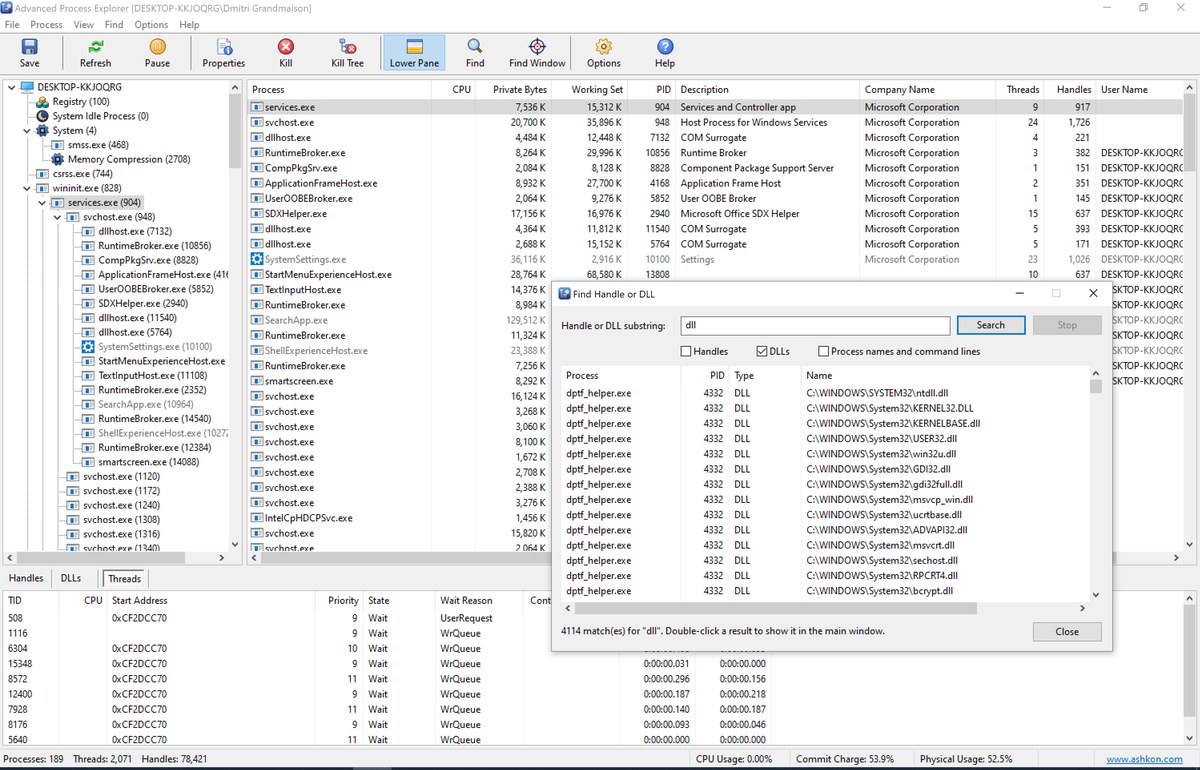
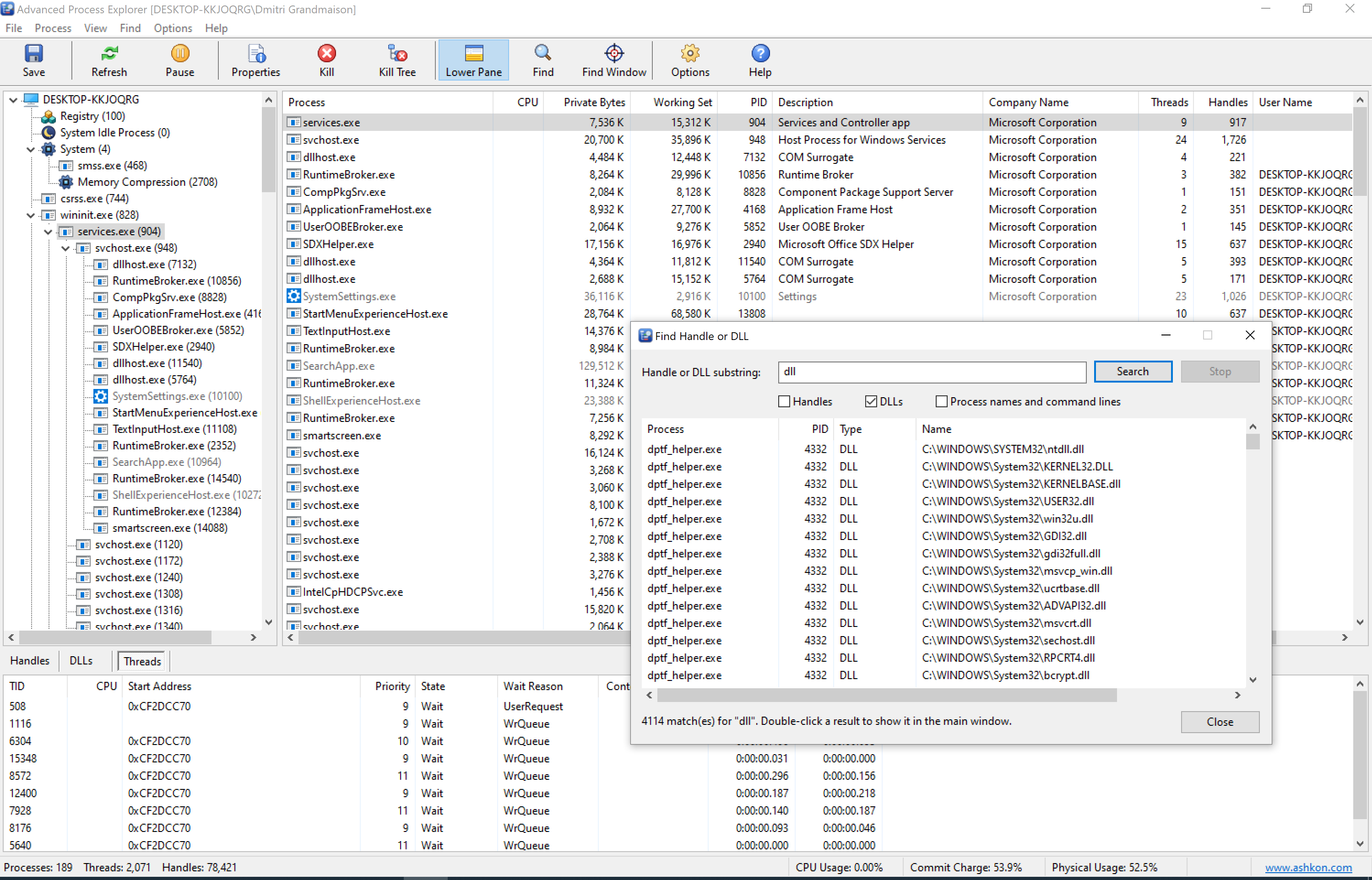
The process tree is on the left, the process list is on the top right, and the lower pane shows the threads of the selected process. The Find Handle or DLL window in front lists every process that has a DLL with "dll" in its name loaded.
Advanced Process Explorer Help
Select a process in the tree on the left to list it and its child processes on the right. Click a process in the list to show its handles, DLLs or threads in the lower pane. Double-click a process or press Enter to open its Properties window. Right-click a process for the Kill, Priority, Affinity, Restart, Suspend and Properties commands.
These are the most frequently used commands. You can run them from the toolbar:
| Save | Save the process list to a text or CSV file. |
| Refresh | Refresh the process list now (F5). |
| Pause | Pause or resume the automatic refresh (Space). |
| Properties | Open the Properties window of the selected process. |
| Kill | Kill the selected process (Del). |
| Kill Tree | Kill the selected process and all its descendants (Shift+Del). |
| Lower Pane | Show or hide the Handles / DLLs / Threads pane (Ctrl+L). |
| Find | Find a handle, DLL, process name or command line (Ctrl+F). |
| Find Window | Drag the crosshair onto a window to find the process that owns it. |
| Options | Refresh interval, highlighting, kill confirmation and other settings. |
| Help | Open the help (F1). |
Which program has my file open? Click Find,
type part of the file name (for example report.docx), check Handles and click
Search. Double-click a result to select the process, then close the program or kill it.
Columns. Use View > Select Columns or right-click a column header to choose the columns of the process list. Drag a column header to move the column; click it to sort.
More information. Some details of system and service processes are available only to administrators. Use File > Run as Administrator to restart Advanced Process Explorer with full rights.