
Translation Pad
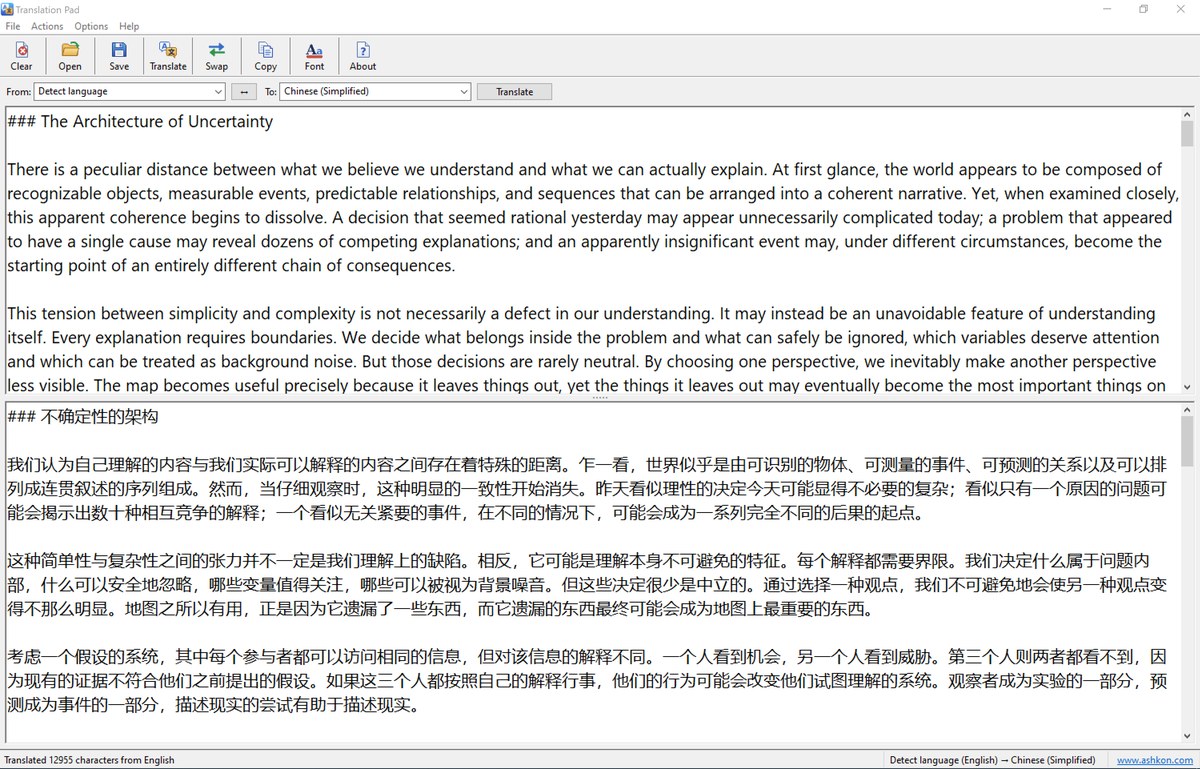
Translation Pad is a simple, fast desktop translator for Windows. Type or paste text in the top pane, choose the target language and press Translate — the translation appears in the bottom pane. Translate between 144 languages, let the program detect the source language for you, and translate whole documents of up to 50,000 characters in one click.
Open text files in any common encoding, save translations as Unicode text, copy them to the clipboard, and swap the languages to translate the result back. Translation runs in the background, so the window stays responsive and a long translation can be cancelled at any time.
Size: 2.88 MB
Released: October 2026
Price: $29.95
Operating Systems: Windows 10/11
Languages: 144 languages plus automatic language detection
Requires: Internet connection (translations are made by an online translation service)


Supported Features
Translation
- 144 languages, from Afrikaans to Zulu, including Chinese (Simplified and Traditional), Japanese, Korean, Arabic, Hebrew, Hindi, Russian and all major European languages.
- Automatic language detection: choose "Detect language" and the status bar shows which language was detected.
- Long texts: up to 50,000 characters per translation. Long texts are split automatically at line, sentence or word boundaries and translated in several requests, with progress shown in the status bar.
- Line breaks and paragraphs are preserved, so the translation keeps the layout of the original text.
- Swap languages with one click to translate the result back into the original language — the text in the two panes is swapped as well.
- Background translation: the program stays responsive while it translates; press Esc to cancel.
Files and clipboard
- Open text files of up to 10 MB. UTF-8, UTF-16 (little and big endian) and ANSI encodings are detected automatically.
- Save the translation as a UTF-8 text file that opens correctly in Notepad, Word and any other editor.
- Copy the translation to the clipboard with one click (Ctrl+Shift+C).
- Full Unicode support for text in any language and script.
Convenient interface
- Two text panes — original on top, translation below — with a splitter you can drag to resize them.
- Toolbar with large buttons, menus and keyboard shortcuts for every command.
- Choose the font and font size of the text panes.
- Stay on top option keeps the translator above other windows while you work.
- Languages, font, window position and pane sizes are remembered between sessions.
Main Window
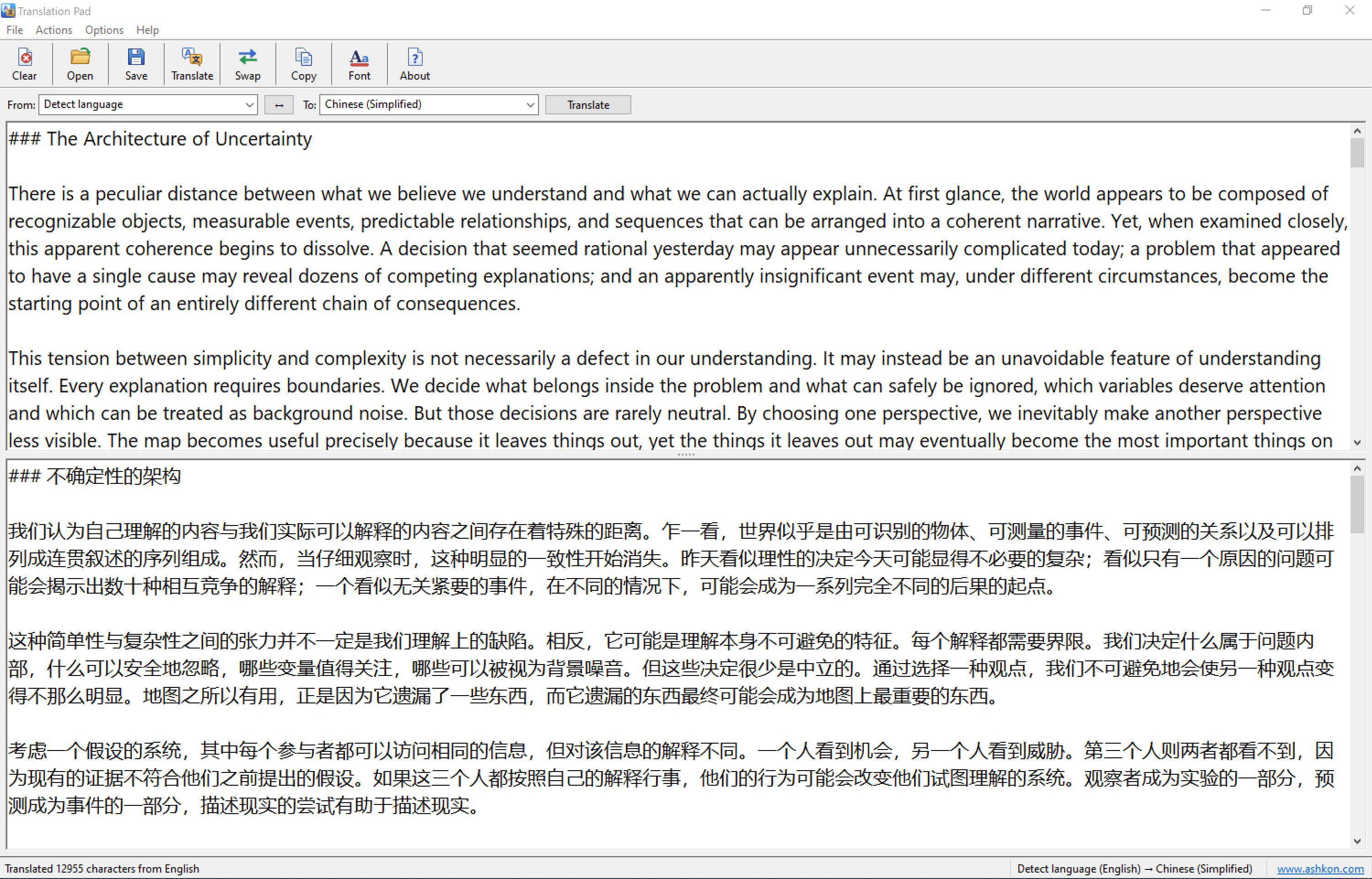
The language bar is below the toolbar. The text to translate is in the top pane and the translation is in the bottom pane. The status bar shows the result of the last translation and the language pair.
Translation Pad Help
Type or paste text into the top pane, or open a text file with File > Open (Ctrl+O). Choose the language of the text in the From box, or leave it set to Detect language, and choose the language to translate into in the To box. Then click Translate (Ctrl+T, Ctrl+Enter or F5). The translation appears in the bottom pane.
These are the most frequently used commands. You can run them from the toolbar:
| Clear | Clear both text panes (Ctrl+N). |
| Open | Open a text file to translate (Ctrl+O). |
| Save | Save the translation to a UTF-8 text file (Ctrl+S). |
| Translate | Translate the text in the top pane (Ctrl+T, Ctrl+Enter or F5). |
| Swap | Swap the source and target languages and the text of the two panes (Ctrl+Shift+S). |
| Copy | Copy the translation to the clipboard (Ctrl+Shift+C). |
| Font | Choose the font of the text panes. |
| About | Show the program version and registration information. |
Detected language. When the source language is set to Detect language, the status bar shows the language that was detected, for example "Detect language (English) → Chinese (Simplified)". After a translation you can click Swap and the detected language becomes the new target language.
Long texts. Up to 50,000 characters are translated at a time. If the text is longer, Translation Pad offers to translate the first 50,000 characters. The status bar shows the progress while a long text is translated; press Esc to cancel.
Options. Options > Font changes the font of both text panes, and Options > Stay on Top keeps the window above other windows. Drag the bar between the two panes to change their sizes. Right-click a text pane for Undo, Cut, Copy, Paste, Delete and Select All.
Internet connection. Translation Pad sends the text to an online translation service and needs an Internet connection to translate. Opening, editing and saving text works offline.